Welcome to Usman's Blog!

Designed by Usman Ali
Usman Ali
Showing posts with label Tips&Tricks. Show all posts

We probably all use our computers every day, but do you really know everything about them? There might be many simple and helpful tricks that you’re not aware of.
There’s much more to Windows than first meets the eye – you can be a power user for years and still not realize the full potential of the operating system.

Shake It Off

Have you got loads of windows open at once and find your screen too cluttered? In Windows 7 and up, click and hold on the title bar of the window you’re interested in and giving it a shake back and forth with your mouse. All other windows will shrink to the taskbar, leaving the window you have made dizzy remaining open.
This feature is known as Aero Shake. You can get Aero features in Windows Vista or XP using third party applications.

Wallpaper Slideshow

Deciding on a single wallpaper to showcase on your desktop is a tricky feat. There’s so many wallpapers to choose from, why settle for one? Instead, right click your desktop and navigate to Personalize > Desktop Background. This will open up a window that lets you set your wallpaper. Select multiple images by holding Ctrl as you click.
You can then customize how often you want the image to change and whether the order of the images should shuffle. No longer will you have to see the same image every time you go to your desktop.

Quick Taskbar Open

No-one has time to move their mouse and click taskbar icons! Instead, hold down the Windows key and press the corresponding number to open up that program. For example, Windows + 1 will open the first icon from your taskbar, and so on.
Additionally, click and hold on the icons and then drag them to rearrange their position on the taskbar. As you do, their corresponding number will change too. Finally, hold down shift as you click an open window to load up a new instance of that program.
You can do even more with the taskbar or use a taskbar alternative like 7+ Taskbar Tweaker.

Resource Monitor

If your system is running slower than usual, then it’s worth checking out what is slowing it down. Do a system search for resource monitor and bring up the respective program. You can switch between different tabs, like CPU and Memory, to see what is hogging your resources.

There are also some Matrix-looking graphs that will offer a real-time look at the usage and strain that each part of your system is undergoing.

Restore Your Deletions

You probably know about Ctrl + C and Ctrl + V for copy and pasting, but there’s also the lesser known Ctrl + Z. This will undo your last action, such as restoring something that you have just deleted on the active window.
For example, if you have sent a file to the Recycle Bin, you can press Ctrl + Z to bring it back to where it once was. This keyboard shortcut also works elsewhere; like in text boxes online to bring back deleted words and the majority of software to revert actions (image editors, word processors, and so on).

Control User Account Control

Some people find User Account Control quite useful, but for others it is more hindrance than help. If you’re not aware, UAC is the feature that pops up every time you’re making an important change to your system.
This feature was introduced in order to better protect users and make them aware of their actions, but if you don’t need it then you can turn it off entirely. Perform a system search for user account control, select the result and the User Account Control Settings window will open. From here you can drag a slider to customize your notification settings.
The default option is the second highest, but drag the slider all the way to the bottom if you never want any notifications. The information section on the right-hand side will tell you what each notch represents in more detail.

BitLocker Drive Encryption

This one is for those of you using Windows 7 Ultimate/Enterprise or Windows 8 Pro/Enterprise. Those of you running a different Windows edition, try one of these disk encryption alternatives.
Data protection is crucially important and BitLocker is a utility that is on hand to help you encrypt your drives. Right click your drive, select Turn on BitLocker and then follow the instructions to get your files secure. It’s simple, quick and easy – no third-party tools required.
Please bear in mind that it is vital you never lose or forget the encryption key to your drive. If you lose this then there’s absolutely no way of getting your data back. Use this feature with great care.

Customize Start Menu Shutdown

Click the Start menu and you’ll see that the default option on the bottom right is to Shutdown, with the arrow next door allowing you to extend your options, like restart or log off. It’s possible to customize this if shutting down isn’t the choice you primarily use.

To do so, right click Shut down, select Properties and this will bring up a taskbarcustomisation window that will let you choose your own power button action. For example, you might want to default to sleep if that’s the choice you usually go for.

Launch Programs With Custom Keyboard Shortcuts

If you have programs that you’re constantly accessing then there’s another way to load them up quicker without clogging up your taskbar.

Right click on the program’s icon (often found from the Start menu or your desktop) and select Properties. This will open up the program’s properties and from here you should switch to the Shortcut tab. The field called Shortcut key is the one we care about.
Click in the field and press a key of your choice. This key, along with Ctrl + ALT combined, will now become your customized shortcut to opening this program in a flash.

Add Taskbar Toolbar

The word ‘toolbar’ has a slightly negative connotation in the tech world. It brings about images of third-party junk clogging up browsers, usually accidentally installed from other programs. But toolbar can also be great things, in the correct place.
Your taskbar, for example, can do more than just store program icons. Right click the taskbar, hover over Toolbar and then tick the ones you want to appear. The best inbuilt one is Address, which will give you a text field that allows you to navigate to any website through your browser or load any path or search in your system.

You might find that some programs offer their own toolbars, like iTunes – this will mean that when you minimize the music player it’ll provide a neat music control panel from your taskbar, saving you loading the window each time you want to pause or change track.

Secret codes for Android mobile operating system. If you are unsure about any codes better not to execute it. Most of the codes are meant for only advance users. So if you would like to try it, better you keep a backup copy of your data on the handset! we are not responsible for any of the data loss or damage to your device by using the codes.

Secret codes android 

CodeFunction
*#*#4636#*#*Display information about Phone, Battery and Usage statistics
*#*#7780#*#*Restting your phone to factory state-Only deletes application data and applications
*2767*3855#It’s a complete wiping of your mobile also it reinstalls the phones firmware
*#*#34971539#*#*Shows completes information about the camera
*#*#7594#*#*Changing the power button behavior-Enables direct poweroff once the code enabled
*#*#273283*255*663282*#*#*For a quick backup to all your media files
*#*#197328640#*#*Enabling test mode for service activity
*#*#232339#*#* OR *#*#526#*#*Wireless Lan Tests
*#*#232338#*#*Displays Wi-Fi Mac-address
*#*#1472365#*#*For a quick GPS test
*#*#1575#*#*A Different type GPS test
*#*#0283#*#*Packet Loopback test
*#*#0*#*#*LCD display test
*#*#0673#*#* OR *#*#0289#*#*Audio test
*#*#0842#*#*Vibration and Backlight test
*#*#2663#*#*Displays touch-screen version
*#*#2664#*#*Touch-Screen test
*#*#0588#*#*Proximity sensor test
*#*#3264#*#*Ram version
*#*#232331#*#*Bluetooth test
*#*#7262626#*#*Field test
*#*#232337#*#Displays bluetooth device address
*#*#8255#*#*For Google Talk service monitoring
*#*#4986*2650468#*#*PDA, Phone, Hardware, RF Call Date firmware info
*#*#1234#*#*PDA and Phone firmware info
*#*#1111#*#*FTA Software version
*#*#2222#*#*FTA Hardware verion
*#*#44336#*#*Displays Build time and change list number
*#06#Displsys IMEI number
*#*#8351#*#*Enables voice dialing logging mode
*#*#8350#*#*Disables voice dialing logging mode
Learning to program can be difficult for many, even with relatively easy programming languages. So, If you are planning to learn C/C++, it is important to get started with the tutorials. Below listed tutorials will cover the basic concepts of the language and help you develop complex programs. Trying to create some programs will help you learn C/C++ language basics.

Here is a compiled list of the best courses, tutorials, books etc. for C/C++

For C/C++

For C

For C++


Please show some love by sharing this post.


Hi guys, Now you can control your computer from your android device. as in above picture, you can get full control over your PC with just an android device. let you control your pc anywhere anytime by using Chrome Remote Desktop app.
The setup process is very simple, taking roughly 5 minutes. just follow some simple steps…ARE YOU READY!!!

How to control your PC from your Android: Google Remote Desktop :

  • Download Chrome Remote Desktop Android App on your Android device.
  • As using chrome extension, go to Chrome web Store using chrome in computer.
  • Add chrome remote desktop in chrome extension
    • Once app has been added, a new tab will open,
    • And then you’ll be asked to authorization, granted permission when required, set pin code
    • Sign in your Google Account, and hit “enable remote connections”
    • After enable, you should have to open remote desktop Android app ( ensure that you have “logged in” with same google account)
    • Now you can see your PC NAME on your Android device screen
    • Just click on your PC name, then you’re good to go.

How to make Mozilla Firefox 30 times faster


1. Type “about:config” into the address bar and hit return. Scroll
down and look for the following entries:
network.http.pipelining
network.http.proxy.pipelining
network.http.pipelining.maxrequests
Normally the browser will make one request to a web page at a time.
When you enable pipelining it will make several at once, which really
speeds up page loading.
2. Alter the entries as follows:
Set “network.http.pipelining” to “true
Set “network.http.proxy.pipelining” to “true
Set “network.http.pipelining.maxrequests” to some number like 30. This
means it will make 30 requests at once.
3. Lastly right-click anywhere and select New-> Integer.
Name it “nglayout.initialpaint.delay” and set its value to “0”.
This value is the amount of time the browser waits before it acts on information it receives.
If you’re using a broadband connection you’ll load pages 2-30 times faster now.


Tutorial

How to make Mozilla Firefox 30 times faster

How to make Mozilla Firefox 30 times faster

How to make Mozilla Firefox 30 times faster

How to make Mozilla Firefox 30 times faster
2 Easy Ways To Download Latest Firefox Offline Installer


Mozilla now offers Firefox with a web installer. It is called stub installer. This means that the user downloads Firefox setup stub instead of the complete offline installer. The initial download is about 300 KB but when you run the web installer, it will start downloading the latest version of Firefox.
The issue with web installer is that it cannot be used to install Firefox on the system where there is no Internet access. If you are a single user, it is beneficial for you to download Firefox stub installer as it will download the latest version of Firefox.
But if you want to install Firefox on multiple computers, it is probably wise to download an offline installer. This will save you a lot of bandwidth as the setup will not be downloaded again and again as in case of stub installer.
There are two ways to download the latest Firefox complete offline installer. One is using the official Mozilla FTP servers and second is to use the Mozilla’s website.
2 Easy Ways To Download Latest Firefox Offline Installer

Downloading offline installer using FTP
The official FTP location of Firefox can be accessed here: ftp.mozilla.org/pub/mozilla.org/firefox/

You will need to go to the releases directory to get the latest stable release of Firefox. You will find all versions of Firefox from the beginning including the stable and beta versions. Each version has its own directory. You will need to go to the directory of latest version of Firefox.
2 Easy Ways To Download Latest Firefox Offline Installer
To recognize the latest version, you can scroll to the end of the list and see which version number doesn’t have a letter ‘b’ in its name. For example, right now the latest release of Firefox is Firefox 22. So you will need to go to 22.0 directory.
If you want to download Firefox for Windows, you can go to win32 directory and download Firefox offline installer in the appropriate language as specified by each directory. Likewise, for Linux, you can go to linux x86_64 and for Mac OSX, you can go to the mac directory.
Downloading Firefox using Mozilla.org
2 Easy Ways To Download Latest Firefox Offline Installer

The second method is easier than the first one. First go to firefox.com and instead of clicking the download button, click “Systems & languages” link just below the download button. This will open another webpage listing down all the languages and their corresponding Firefox downloads for each Operating System including Windows, Mac OS and Linux.
Just find your language and click on the corresponding Download button. This will download Firefox offline installer instead of the stub installer.

A Hidden Game in Your Google Chrome, Works on Android and PC

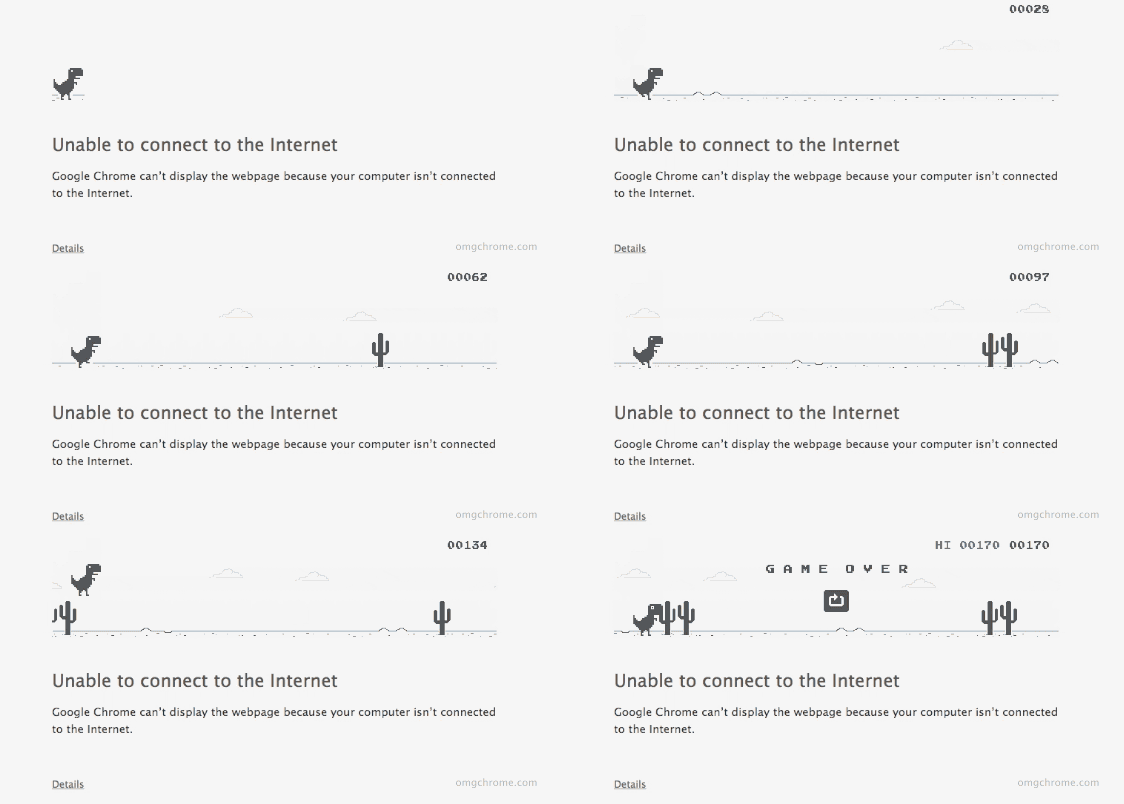
I accidentally stumbled upon the hidden game of Google chrome today and found it quite interesting. You remember the T-Rex dinosaur? The image of dinosaur that appear when your computer or smartphone is not connected to the internet? That is not just an image, but there’s a game hidden inside it.

How to play it?

Desktop:

Desktop users can just disconnect their computer from internet and perform some random search. Once you get the page having T-Rex dinosaur, press the space bar  to activate the game. Your T-Rex will start running and you will have to avoid the cactus tree in the middle by clicking space bar to jump.

A Hidden Game in Your Google Chrome, Works on Android and PC

Android:

Android users have to disable the data pack or switch the phone to the airplane mode to play this game. After turning off the data, perform some random search for T-Rex to come. The only difference in Android game is that you have to tap on the screen to jump.
A Hidden Game in Your Google Chrome, Works on Android and PC

A Hidden Game in Your Google Chrome, Works on Android and PC

Give it a shot and have fun  :D


In order to show hidden files and folders in Windows 7, open the folder containing you files and click on Organize tab >> Folder and Search Options. Now click on View tab and uncheck the option named “Hide protected operating System Files”. Also click on “Show hidden files and folders” option. When you apply the new settings, all the files and folders will become visible.

how to unhide file in usb that are hidden by a virus


If you want to unhide Hidden System Files in USB, follow the steps below.


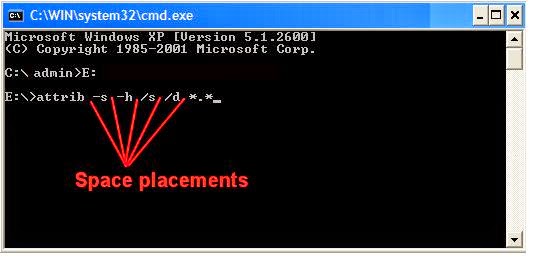
  •   Click on the start button and type cmd in the search box.
  •  Click on cmd and it will open a black DOS window.
  •   Type the following command there and press enter.
  •   attrib -H -S G:*.* /S /D /L
How to unhide file in usb that are hidden by a virus


  •   Hit enter button and it will show hidden files and folders from G drive.
  •   You can replace “G:” in the above command with the path of your required folder or USB drive. Remember that *.* will apply the attribute to all the files and folders present there.
  •   In the above command, -H and –S and the attributes. The first one will show the hidden files andfolders whereas the second one will convert system files to normal files.
  •   If you change negative signs to positive in above commands, it will make those files again hidden and system.


how to unhide file in usb that are hidden by a virus

Note:


Feedback Email

Name

Email *

Message *

Translate